There's a feature called App Data Backup in CH-Ops, and it's easy to assume this article is about the same thing. It isn't. App Data Backup protects CH-Ops's own configuration - dashboards, alert rules, users. This is about the data actually sitting in your ClickHouse® tables, and it's a completely separate system under Backups → Data Lifecycle. If you only remember one thing before reading on: these two features share a destination (Storage Profiles) and nothing else.
With that out of the way - this page assumes you've never taken a ClickHouse® backup before, and it's worth reading in that spirit even if you have, because a few things about how ClickHouse® backups work explain almost every "why is it doing that" moment later.
How this actually works under the hood
ClickHouse® has a BACKUP statement built in. You run it against the server, point it at a destination, and the server writes the data there. CH-Ops doesn't copy anything itself - it composes that statement, sends it, and reports back what happened.
That one fact explains three things that otherwise look odd:
- The server needs access to the destination, not CH-Ops. If your ClickHouse® nodes can't reach the S3 bucket, the backup fails - even if CH-Ops itself can reach it fine. This is the single most common first-time failure, and it's worth internalizing now rather than discovering it mid-incident.
- A backup is a directory of files, not one file. ClickHouse® writes a structured layout to the bucket. Don't rearrange it by hand - the structure is how ClickHouse® finds its own pieces again on restore.
- Consistency is per-table, not necessarily across tables at one instant. Fine for most purposes, but worth knowing before you lean on cross-table consistency for something that actually needs it.
Before you can back anything up
CH-Ops needs somewhere to send backups - a bucket and credentials to reach it. That's a storage profile, configured once under Control Panel → Storage Profiles, and it's the same profile system used by App Data Backup. Set the destination up once, and both features can use it.
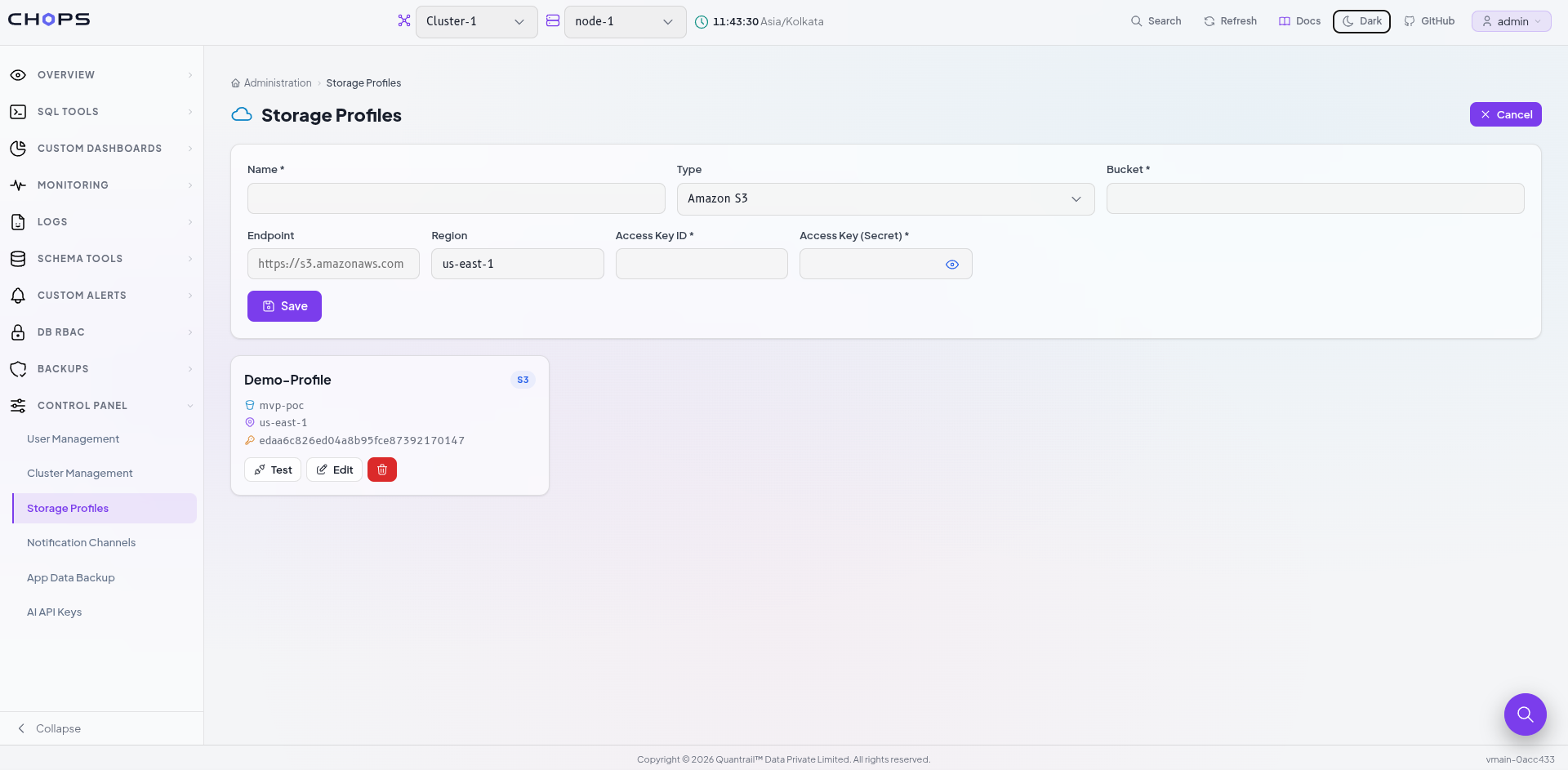
Worth testing the profile before trusting it - but be precise about what a passing test actually proves. It confirms CH-Ops can reach the bucket. It says nothing about whether your ClickHouse® servers can, and since the server is what actually writes the backup, that's the connection that matters. A profile that validates here can still fail at backup time for exactly that reason.
Taking a manual backup
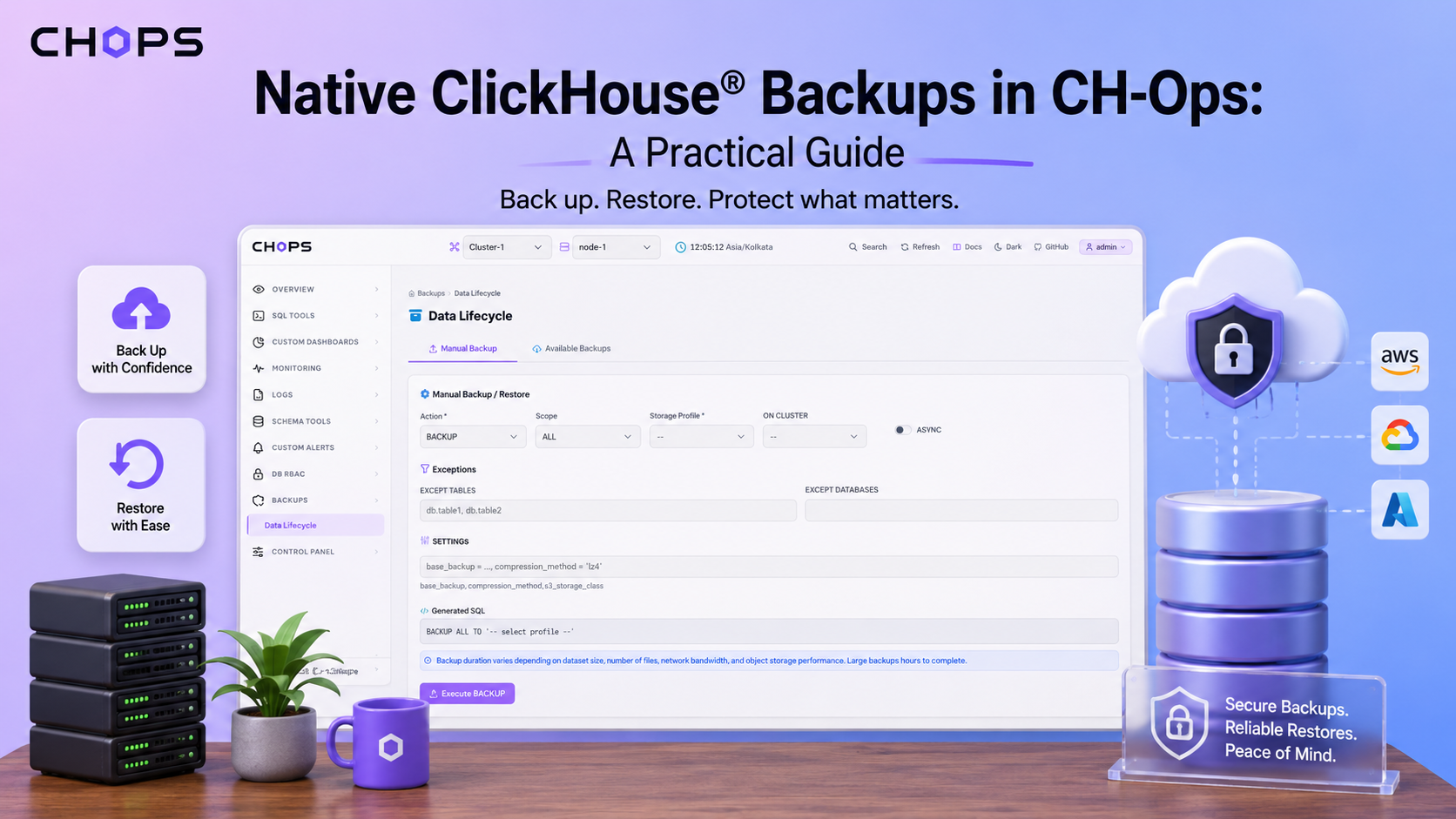
Backups → Data Lifecycle → Manual Backup. The flow:
- Choose a scope - whole cluster, one database, or one table.
- Choose a storage profile.
- Set any options (defaults are reasonable for a first backup).
- Read the preview - the exact statement, credentials masked, updating live as you change choices.
- Run it.
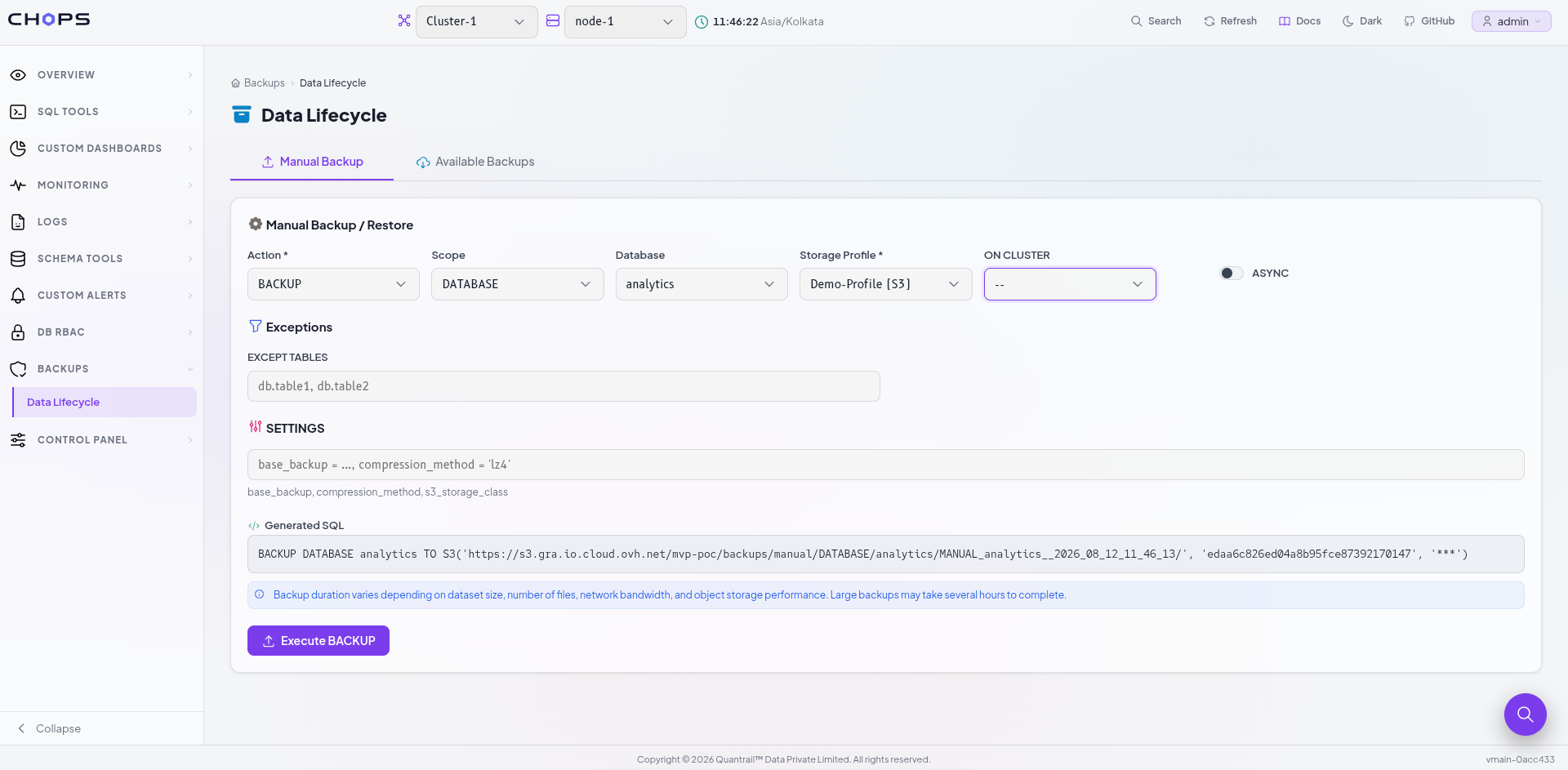
That preview step isn't decoration - it's the last chance to notice the scope is wrong or the destination is still pointed at a test bucket before anything actually runs. It's also, incidentally, the fastest way to learn BACKUP syntax: change one option and watch which clause appears or disappears.
Choosing a scope
| Scope | Statement | Use when |
|---|---|---|
| Cluster | BACKUP ALL | You want everything |
| Database | BACKUP DATABASE x | One application's data |
| Table | BACKUP TABLE x.y | Before a risky change to one table |
Exclusions let you take a broad scope and carve out what you don't want, which is usually the better direction than listing every database you do want - skip anything rebuildable, like staging copies or materialized data you could recompute instead. And keep an eye on time: a cluster backup on a large deployment reads a lot of data and takes a while. Save that scope for when you actually need it; use narrower scopes for routine work.
The two options worth knowing
Run in the background adds ASYNC. The statement returns immediately and the server keeps going after that. Use this for anything large - without it, the request stays open until the backup finishes, and a browser timeout partway through a long backup leaves you genuinely unsure whether it's still running or not.
Apply across a cluster adds ON CLUSTER, running the statement on every node instead of just the one you're connected to. Necessary for a distributed setup; changes nothing on a single server.
There's also a free-text extra settings field for anything ClickHouse® backup settings support directly. Three you'll likely reach for:
| Setting | Does |
|---|---|
base_backup | Makes this backup incremental against an earlier one |
compression_method | e.g. 'lz4' - trades CPU for size |
s3_storage_class | Which S3 storage class to write to, for cost |
Written exactly as you'd write it in SQL - base_backup = S3('https://bucket.s3.amazonaws.com/full-2026-07-01'), compression_method = 'lz4' - and passed straight through to ClickHouse®, so its own documentation is the authority on anything not covered here.
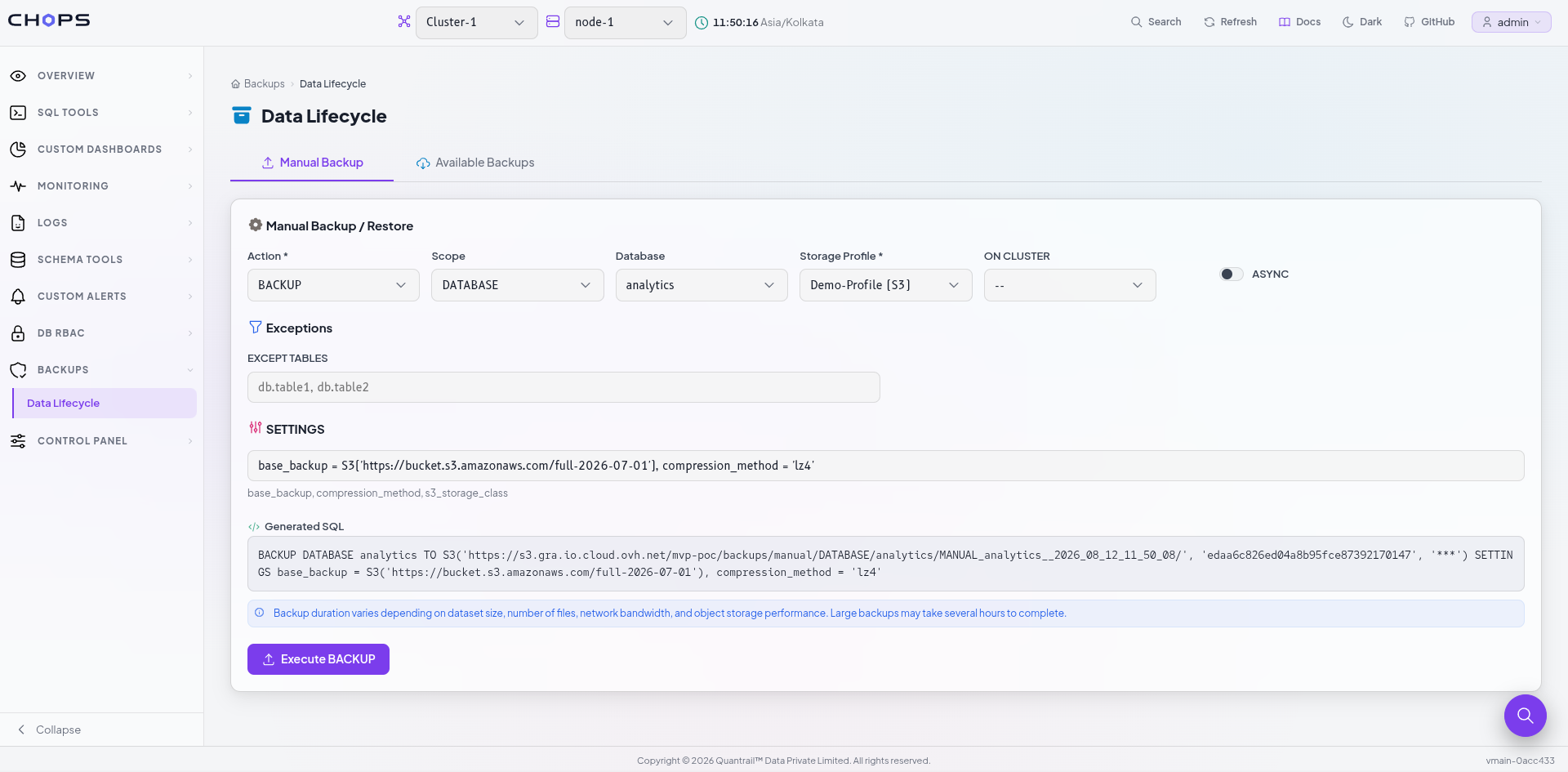
Restoring
On the same Manual Backup tab, List Available Backups - CH-Ops scans your S3 storage and lists what's there, newest first. Pick one, restore it.
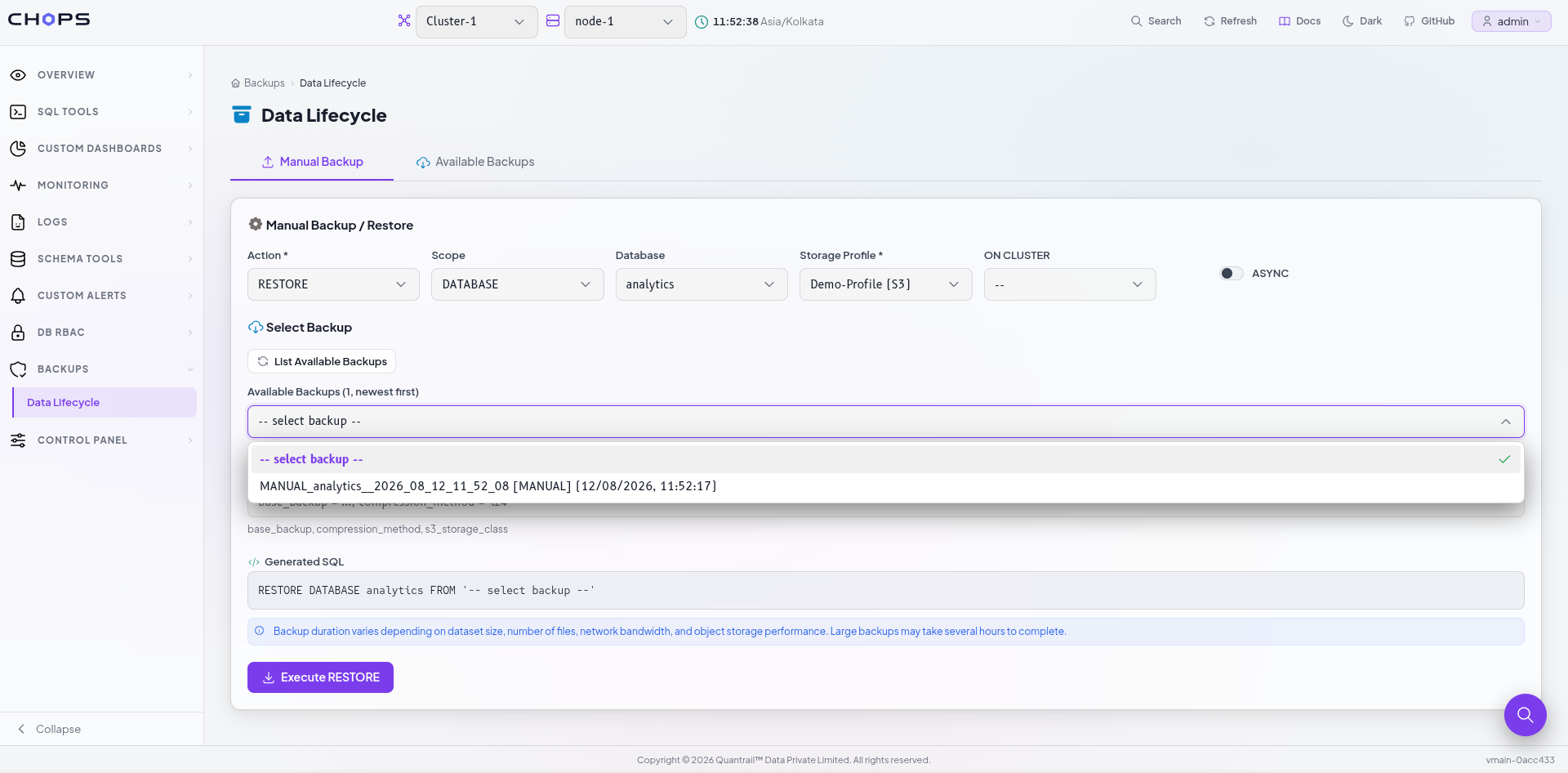
A few things worth holding onto before clicking restore:
- Restoring is not undo. Read what it will actually do to what already exists - restoring over a table that's still there isn't automatically safe.
- Restore somewhere else first when you can. A different database name, or a staging cluster, proves the backup is good without risking the thing you were trying to protect in the first place.
- A backup you've never restored is a hope, not a backup. The first restore shouldn't happen during an actual incident. Try one on something small while nothing's on fire.
Browsing what you have
The Available Backups tab is the inventory: choose a storage profile, click Scan S3, and see everything that's actually out there.
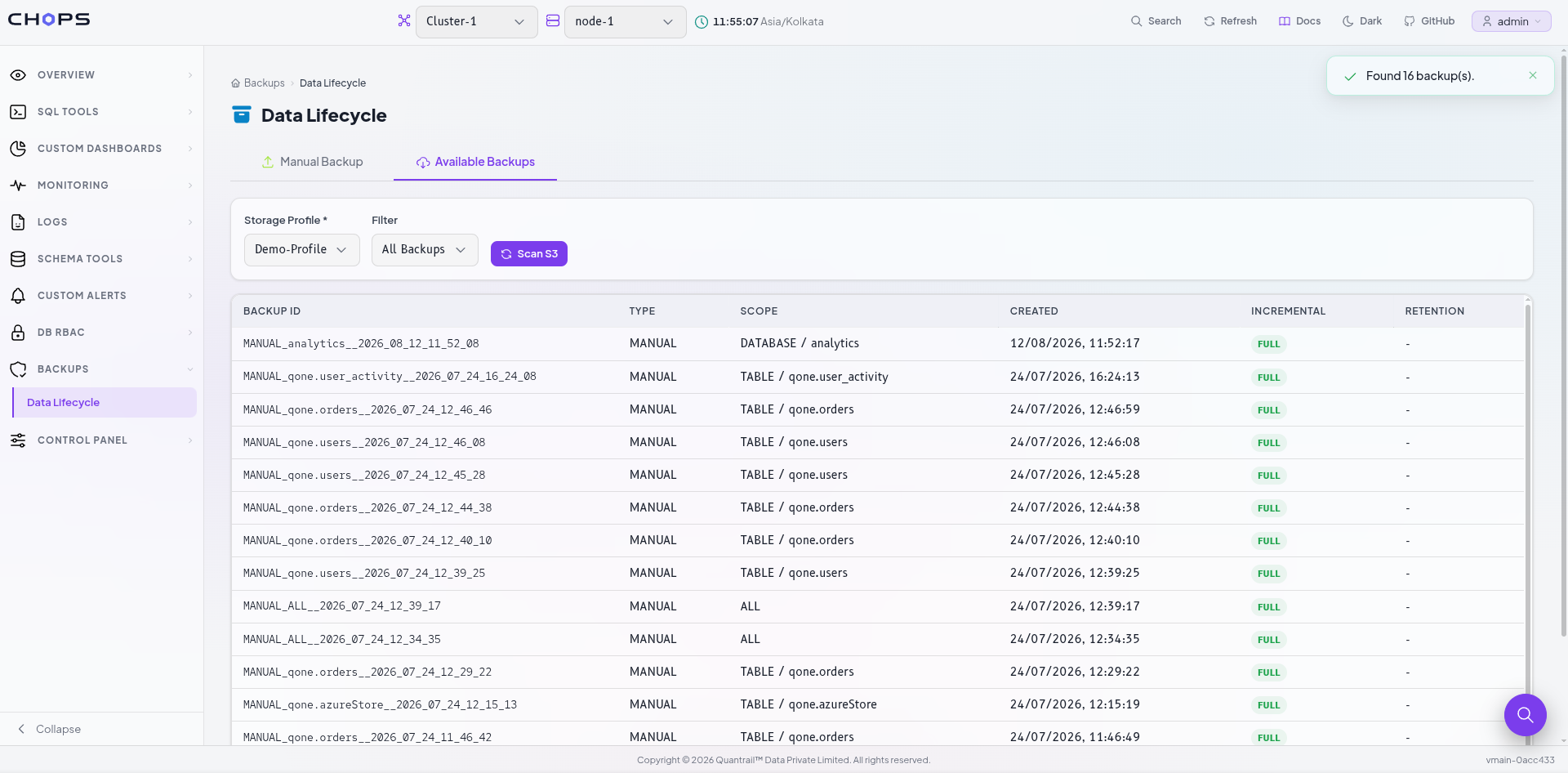
| Column | Meaning |
|---|---|
| ID | The backup's identifier |
| Scope | Cluster, database, or table |
| Created | When it was taken |
| Type | Full or incremental |
| Retention | How long it's set to be kept |
Worth scanning this occasionally even when nothing's wrong - it's how you find out a schedule quietly stopped running three weeks ago, instead of finding out at the worst possible moment.
Full vs. incremental
A full backup contains everything in its scope. An incremental contains only what changed since an earlier one, referenced through base_backup.
Incrementals are smaller and faster to take. The trade: restoring one needs its base - and the base of that base, all the way back to a full. Break any link in that chain and everything after it stops being usable.
A practical pattern: a full backup weekly, incrementals daily against it. Each week starts a fresh chain, so no single chain grows long enough to become fragile. And keep at least one complete chain past your retention window - retention that deletes a base while its incrementals survive leaves you holding files that can't restore anything.
When something doesn't work
Fails immediately with an access error. The server can't reach the bucket - remember, the server writes the backup, not CH-Ops, so a profile that validated fine can still fail here. Check your ClickHouse® nodes have real network access to S3, and that the credentials are ones the server can use - on a cloud deployment that often means an attached instance role rather than static keys.
Runs forever and the page seems stuck. ASYNC wasn't enabled. The request stays open until the server finishes; turn it on for anything large - the backup itself isn't affected by what the browser does.
Scan S3 returns nothing. Three possibilities, in order of likelihood: the profile points at a different bucket or prefix than what was actually written to, nothing's been backed up with this profile yet, or everything's aged past retention and been cleaned up.
Restore fails, missing base backup. A broken incremental chain - its base was deleted, probably by retention. Find an earlier full and restore that instead, then fix retention so it stops deleting bases ahead of their incrementals.
Restore fails, table already exists. Expected - ClickHouse® won't silently overwrite. Restore under a different name, or deliberately remove the existing table first if you're certain.
Backup succeeded but looks smaller than expected. Usually exclusions - check what got left out in the preview. Can also just be normal: ClickHouse® compresses well, and a backup being much smaller than the raw data on disk isn't automatically alarming.