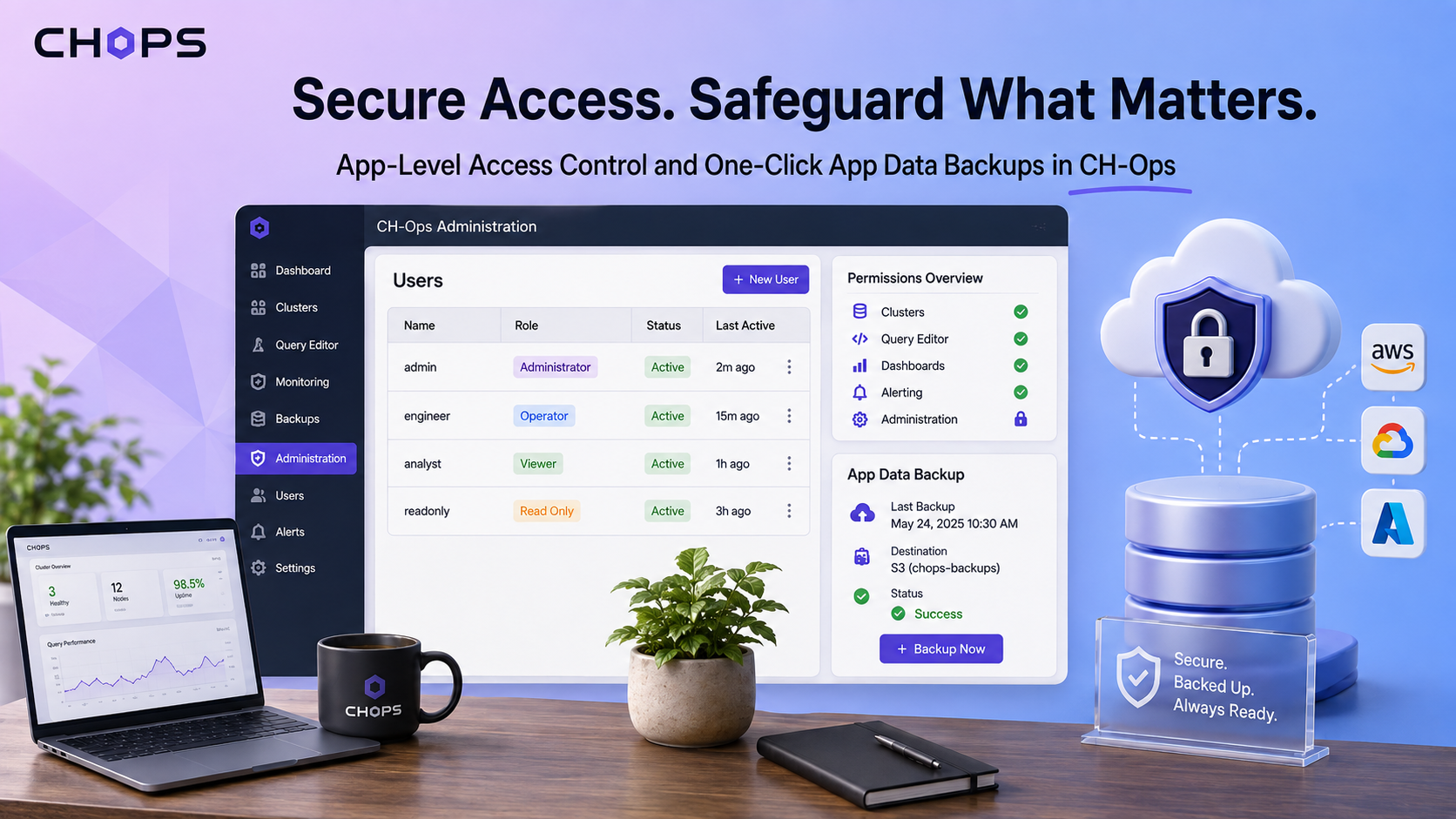
CH-Ops access control provides a dedicated permission layer for managing who can use the CH-Ops application and what they can do inside it.
Managing a ClickHouse® cluster is only one part of running a database platform. Once a team starts using a shared administration tool, another question becomes important: who is allowed to use the tool, and what happens to the tool's own configuration if the application is lost?
CH-Ops addresses both concerns with application-level access control and app-data backup capabilities.
The application maintains its own configuration separately from the ClickHouse® data it manages. This includes information such as users, dashboards, alerts, and cluster definitions.
That creates an important distinction:
A ClickHouse® backup protects ClickHouse® data. An app-data backup protects the state of CH-Ops itself.
In this article, we'll look at both capabilities and how they fit into a self-hosted ClickHouse® environment.
Application-Level Access Control
There are two permission systems to consider when operating ClickHouse® through CH-Ops.
The first is ClickHouse® access control, which determines what a ClickHouse® user can do inside the database.
The second is CH-Ops application access control, which determines what someone can do inside the CH-Ops application.
These systems serve different purposes.
For example, several engineers might need access to the same production cluster to monitor queries and investigate issues. That doesn't necessarily mean everyone should be able to modify application configuration or manage other CH-Ops users.
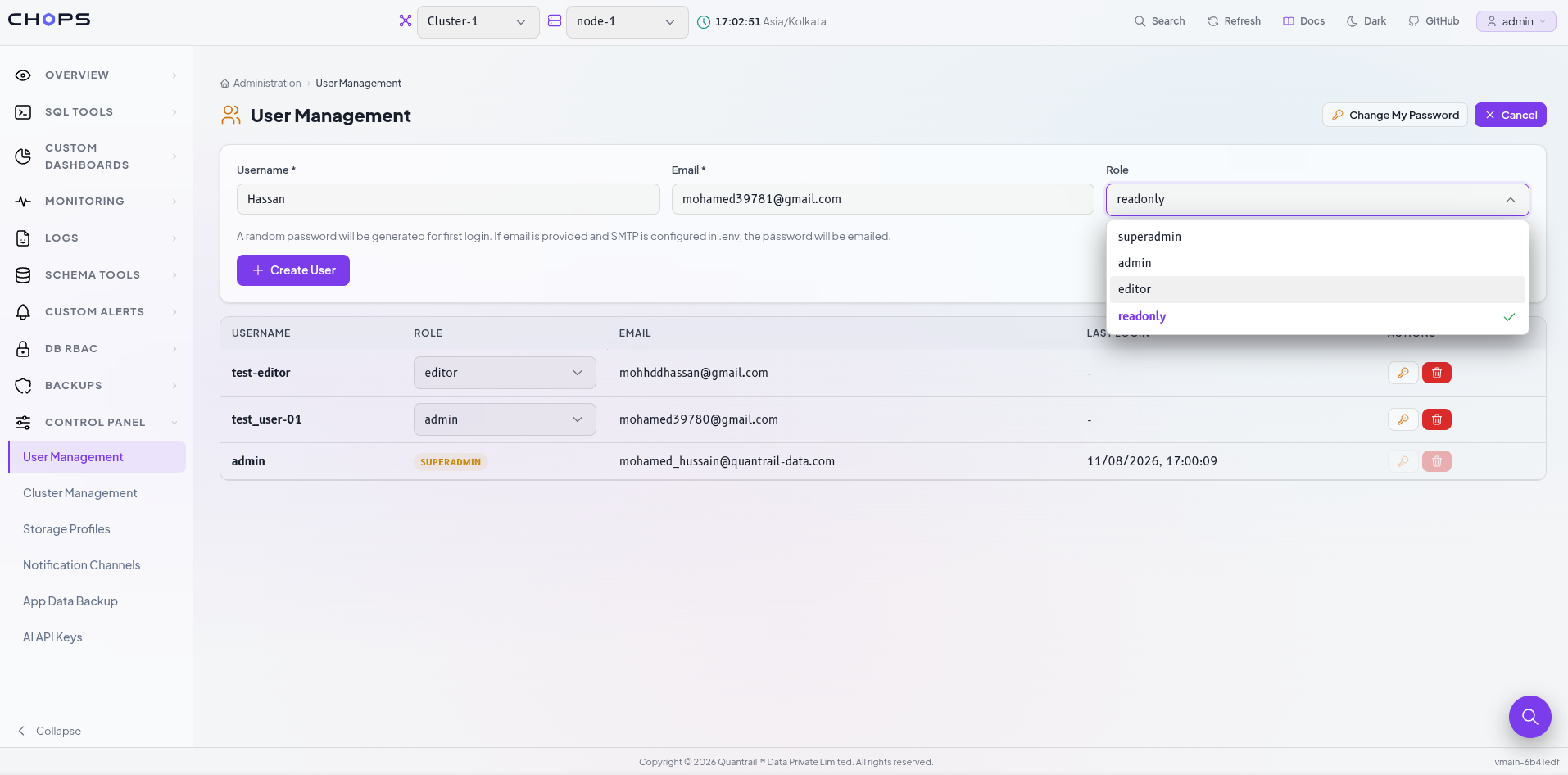
CH-Ops provides four application-level roles so access can be assigned according to the responsibilities of each user.
The important part is that these roles apply to CH-Ops itself, rather than replacing ClickHouse®'s own RBAC system.
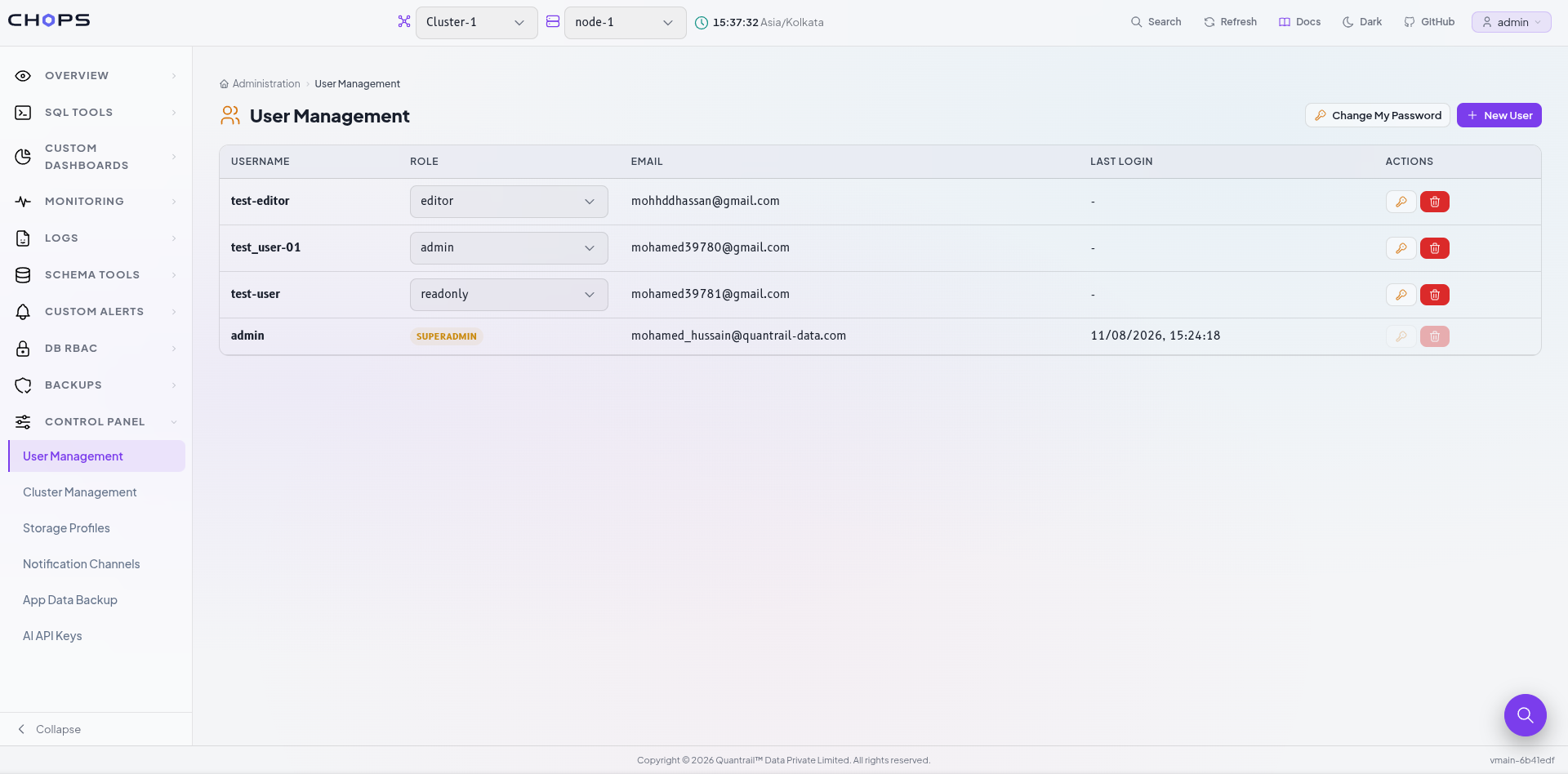
CH-Ops Users vs. ClickHouse® Users
It is easy to confuse these two concepts.
A ClickHouse® deployment may contain database users such as:
ClickHouse®
├── analyst
├── data_engineer
├── reporting_user
└── admin
These accounts are managed by ClickHouse® and control access to databases, tables, queries, and other database operations.
CH-Ops has a separate set of application users:
CH-Ops
├── User A
├── User B
├── User C
└── User D
These accounts determine who can access the CH-Ops application and what application-level operations they can perform.
CH-Ops can separately manage ClickHouse® users, roles, and grants through its Access Control functionality. Keeping these two permission layers separate is useful because administering the management application and administering the database are different responsibilities.
Managing CH-Ops Users
A single administrator account may be sufficient for a personal installation, but a team operating multiple ClickHouse® clusters needs a way to separate administrative responsibilities from day-to-day operational access.
Why Back Up CH-Ops Itself?
Now consider a different failure scenario.
Your ClickHouse® data is backed up correctly, but the server running CH-Ops is lost.
What happens to the configuration you created inside CH-Ops?
CH-Ops stores its own application state in a SQLite database rather than storing that configuration inside ClickHouse®. This state can include users, dashboards, alerts, cluster definitions, and other application settings.
Reinstalling CH-Ops does not automatically recreate all of that configuration.
This is where app-data backup becomes useful.
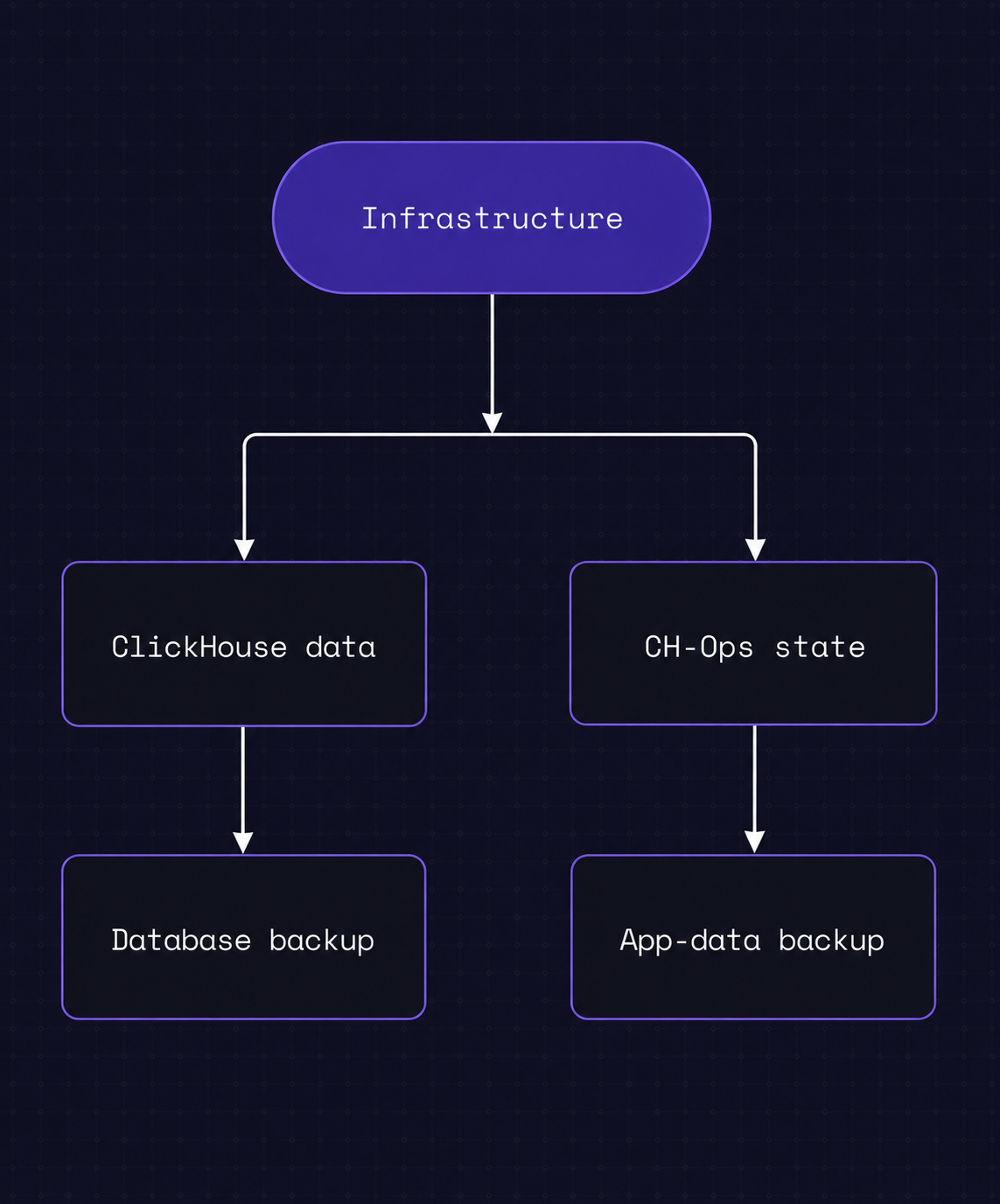
The two backups protect different layers of the infrastructure.
One-Click App Data Backup
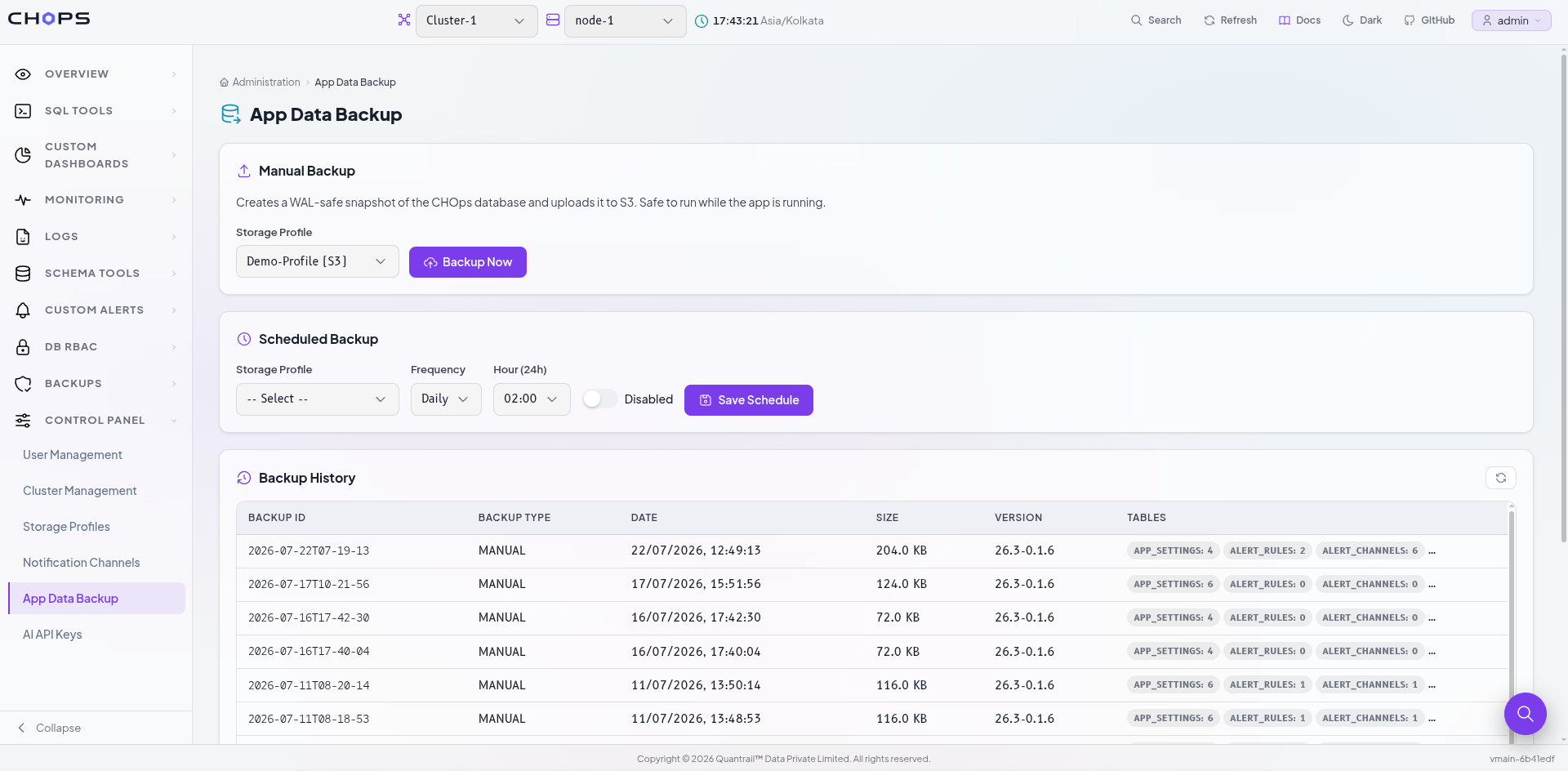
CH-Ops provides an application-data backup workflow through its Administration functionality.
Instead of manually locating the application's SQLite database and building a separate copy process, administrators can use the application's backup functionality to protect its configuration.
The workflow is intentionally straightforward:
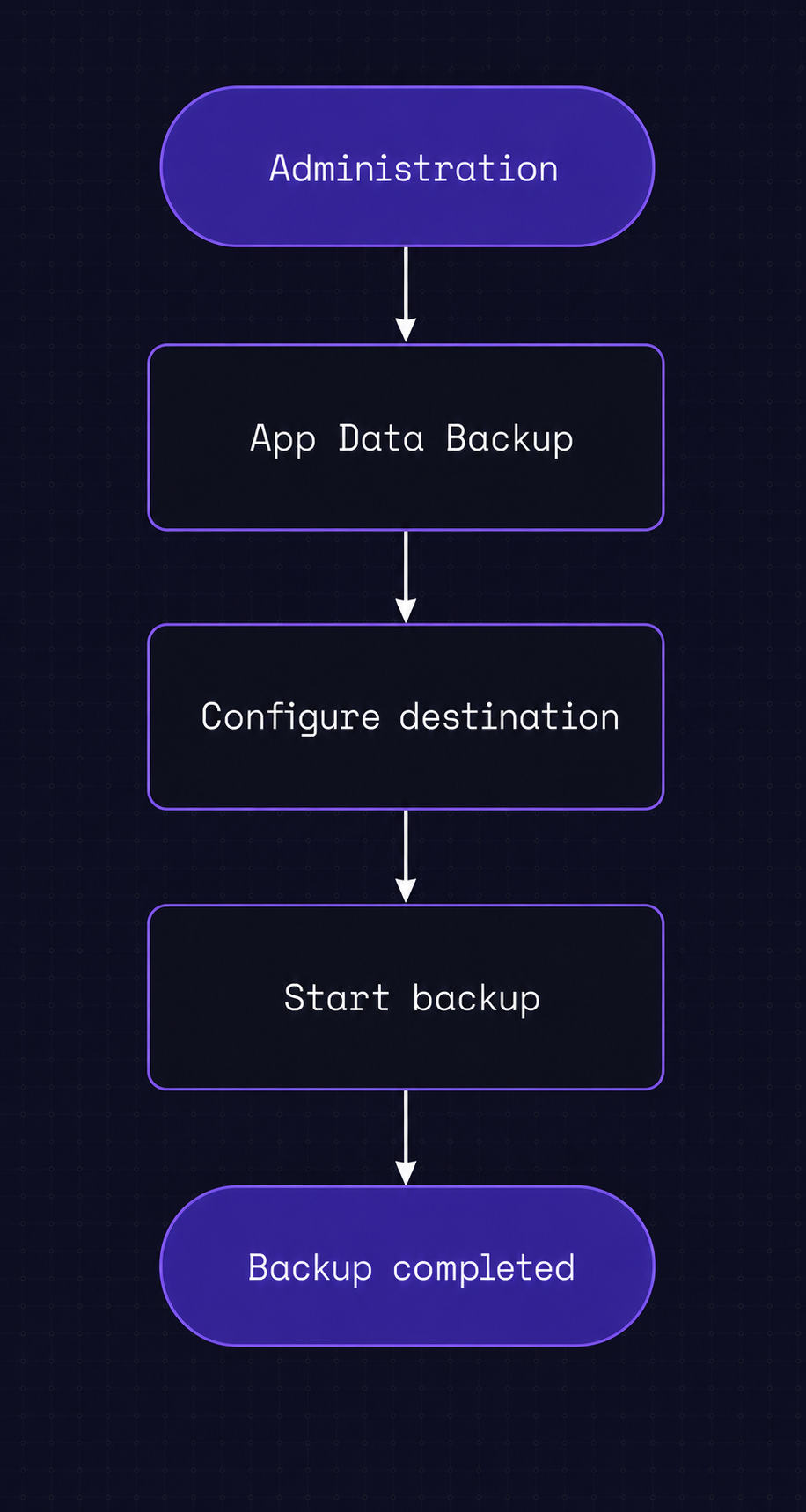
This is particularly useful for self-hosted deployments where CH-Ops is running on a VM, server, or container.
App Backup vs. ClickHouse® Backup
The word "backup" can make these two operations sound interchangeable, but they protect different things.
A ClickHouse® backup is concerned with ClickHouse® data and database objects.
An app-data backup is concerned with CH-Ops configuration and application state.
For example:
| Backup | Protects |
|---|---|
| ClickHouse® backup | ClickHouse® database data |
| CH-Ops app-data backup | Users, dashboards, alerts, cluster definitions, and application configuration |
CH-Ops does not use its SQLite database to store the actual ClickHouse® table data.
That means backing up CH-Ops does not replace a ClickHouse® backup strategy, and backing up ClickHouse® does not automatically protect the configuration of the CH-Ops installation.
A production environment should treat these as two separate backup concerns.
Keeping the Backup Separate
A backup stored on the same machine as the application does not provide much protection against a machine-level failure.
CH-Ops supports app-data backups to external storage destinations such as S3, GCS, and Azure.
That makes it possible to separate the application from the location where its backup is stored:
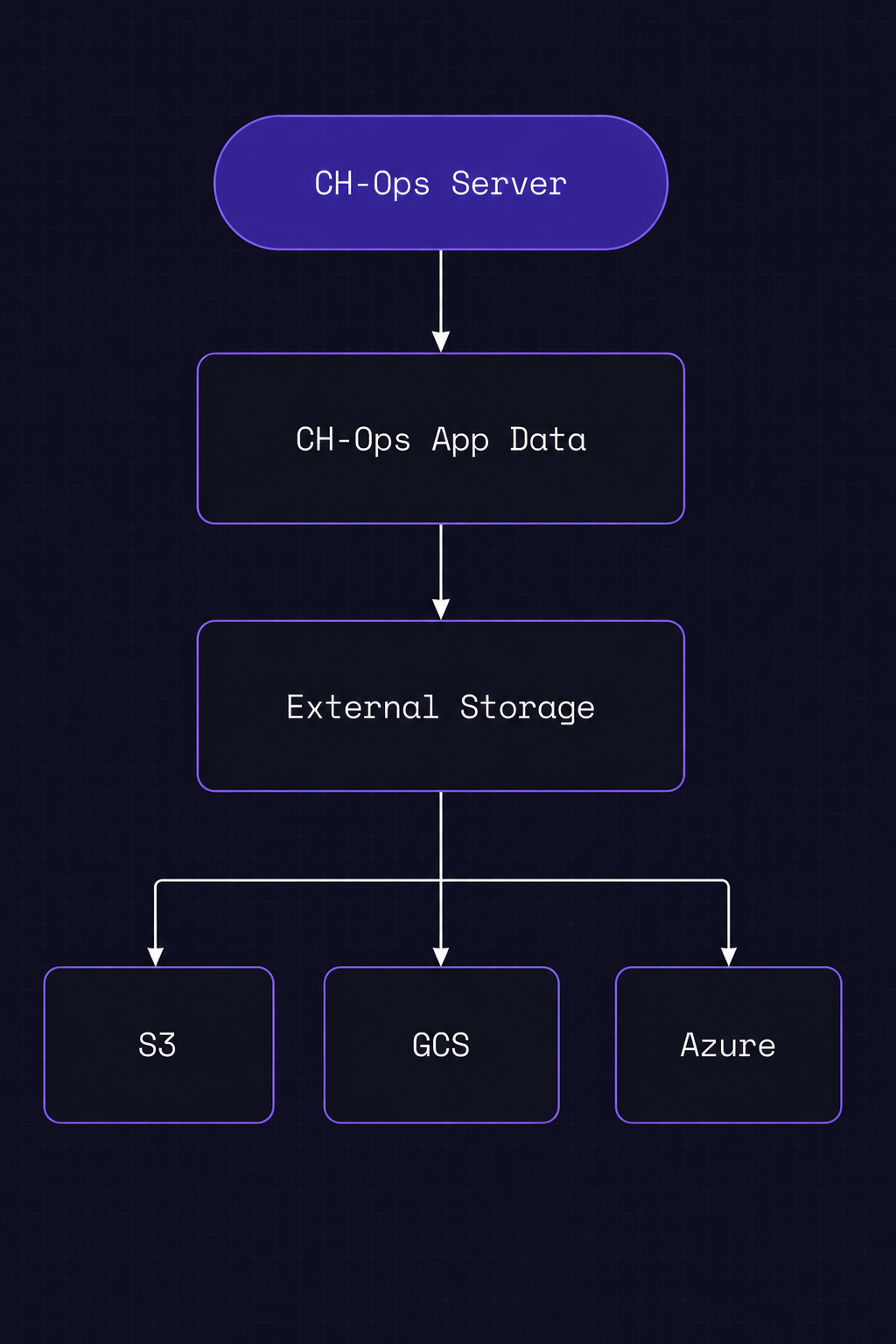
If the CH-Ops host is lost, the backup remains available independently of that host.
The Backup Workflow
The practical workflow is simple:
- Open CONTROL PANEL.
- Open the app-data backup functionality.
- Configure or select the backup destination.
- Start the backup.
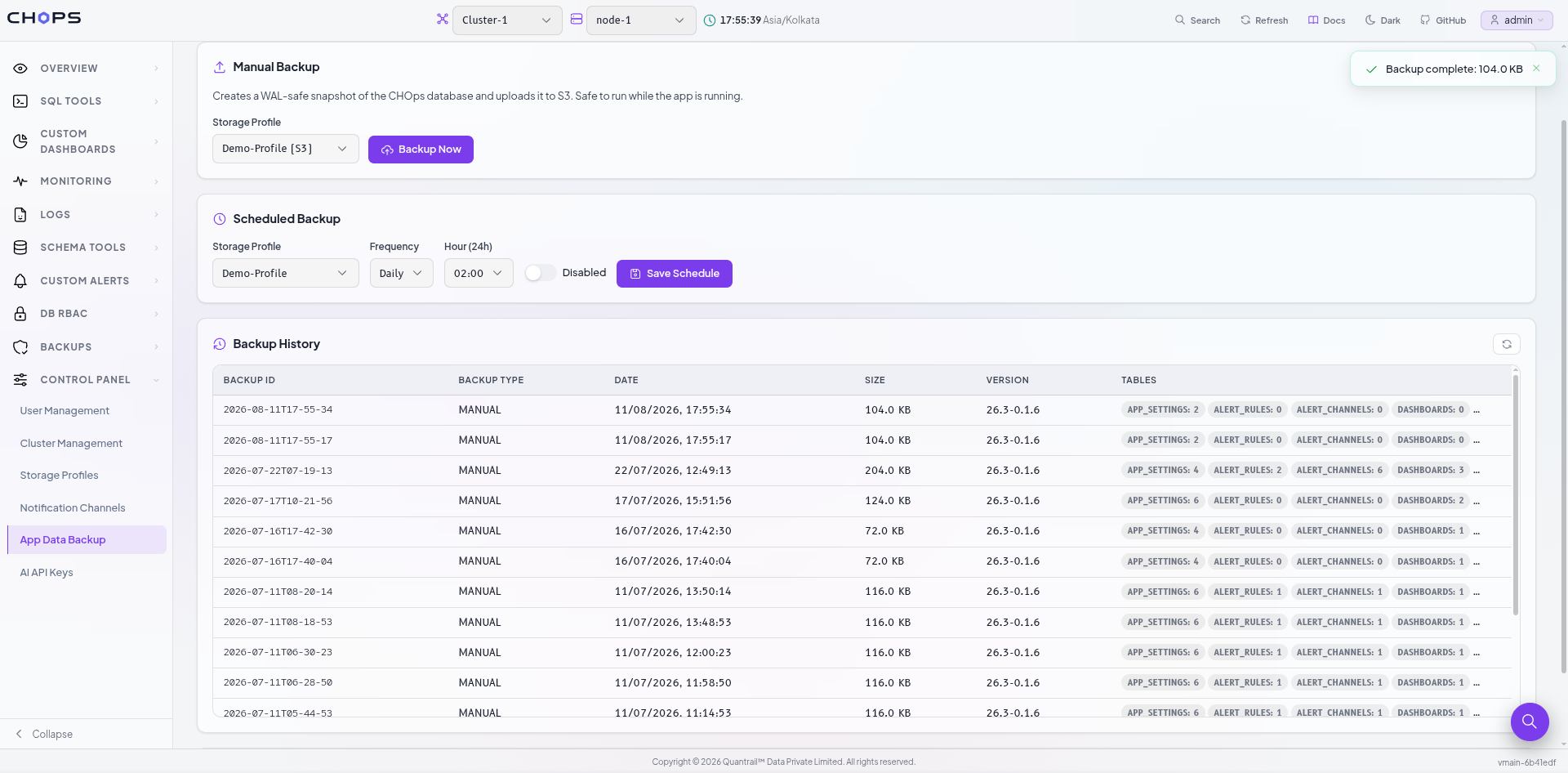
- Verify that the operation completed successfully.
The important distinction is that this operation backs up CH-Ops application data, not the data stored in your ClickHouse® tables.
That makes it complementary to an existing ClickHouse® backup strategy rather than a replacement for it.
Restoring CH-Ops App Data
Backing up application data is only half of the recovery story. CH-Ops provides a way to restore the backed-up SQLite database, but there is one important requirement: the CH-Ops server must be stopped during the restore.
Restoring replaces the existing application data, so this operation should be performed carefully.
1. Download the Backup
First, download the backup file from the configured S3-compatible storage.
For example, using the AWS CLI:
aws s3 cp s3://YOUR_BUCKET/chops-app-backups/BACKUP_ID.db ./chops-restore.db \
  --endpoint-url YOUR_ENDPOINT
The same approach can be used with S3-compatible storage by providing the appropriate endpoint.
2. Stop the CH-Ops Server
The server must not be running while the database is replaced.
For development, stop the running process:
Ctrl+CFor a production installation managed by systemd:
sudo systemctl stop chopsIf CH-Ops is running as a foreground binary, stop the process with Ctrl+C or terminate the process normally.
3. Replace the Application Database
Before replacing the database, remove the existing SQLite WAL and SHM files:
rm -f data/chops.db-wal data/chops.db-shmThese files belong to the existing SQLite database and can contain unflushed state from the old database.
The backup itself is a self-contained SQLite database created using VACUUM INTO. The backup is stored as base64 text, so decode it first:
base64 -d chops-restore.db > chops_decoded.dbThen replace the current application database:
cp chops_decoded.db data/chops.dbAt this point, the CH-Ops application database has been replaced with the backed-up state.
4. Start CH-Ops Again
For development:
bun run devFor a systemd-managed production installation:
sudo systemctl start chopsFor a foreground binary:
./chopsOnce the server starts, CH-Ops will use the restored SQLite database.
What Gets Restored?
The app-data backup contains CH-Ops's internal application state, including:
- Alert rules
- Alert channels
- Dashboards
- Charts
- Backup schedules
- User accounts
- Application settings
The restoration affects CH-Ops application state only. It does not restore, modify, or overwrite the underlying ClickHouse® data.
In other words:
CH-Ops backup
      │
      ▼
SQLite application state
      │
      ├── Users
      ├── Dashboards
      ├── Alerts
      ├── Charts
      ├── Backup schedules
      └── Settings

          X

ClickHouse® data
      │
      └── Not affected
Because restoration replaces the existing application database, this should be treated as a recovery operation rather than a routine configuration change.
A Practical Team Scenario
Consider a data platform team running several ClickHouse® clusters through CH-Ops.
A platform administrator may need to manage application users and cluster configuration, while other engineers primarily need the ability to monitor clusters and investigate problems.
Application-level roles provide the separation between these responsibilities.
At the same time, the team may have accumulated dashboards, alerts, cluster definitions, and other configuration inside CH-Ops.
That configuration is now part of the team's operational environment.
The two features address these concerns together:
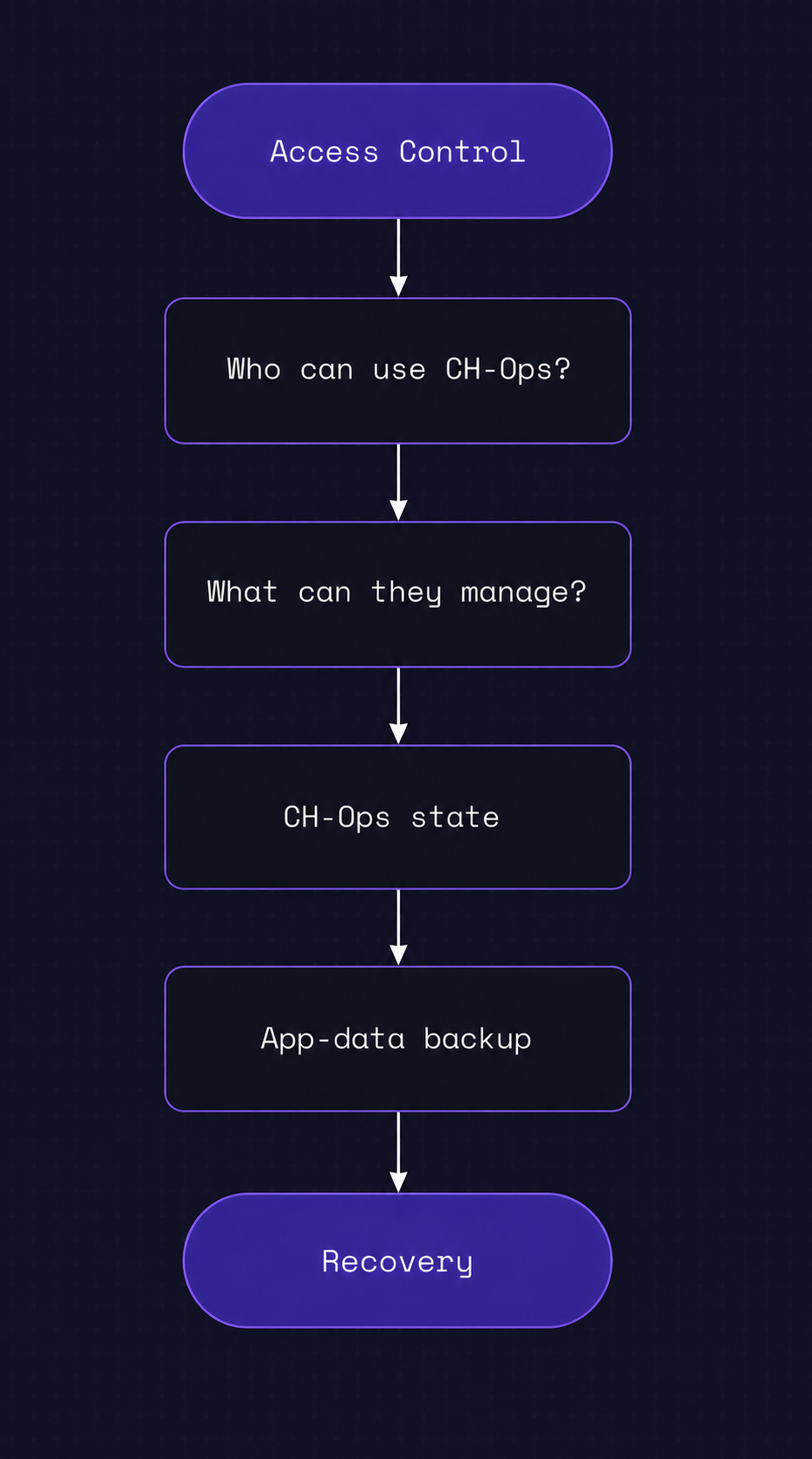
Access control protects who can change the management layer.
App-data backup protects the management layer itself.
A Simple Operational Checklist
For a self-hosted CH-Ops deployment:
- Create individual CH-Ops accounts rather than sharing credentials.
- Assign users the appropriate application role.
- Keep CH-Ops credentials and ClickHouse® credentials protected.
- Back up CH-Ops application data separately from ClickHouse® data.
- Store backups on external or independent storage.
- Verify that backups complete successfully.
- Test the recovery process rather than assuming the backup works.
Final Thoughts
A ClickHouse® management platform becomes part of the infrastructure around your database.
That means it needs its own access controls and its own recovery strategy.
CH-Ops addresses these two areas through application-level access control and app-data backup.
Application-level roles provide a way to control who can use and administer CH-Ops without confusing those permissions with ClickHouse®'s own RBAC system.
App-data backups protect the configuration stored by CH-Ops, including the application state needed to recreate a working management environment.
Together, they answer two simple operational questions:
Who is allowed to manage the management layer?
and:
Can we recover that management layer if the host is lost?
For teams using CH-Ops to manage their ClickHouse® infrastructure, those are small but important pieces of building a more resilient operational setup.