You need to restart ClickHouse®.
So you open a terminal.
SSH into the server.
Check whether the service is running.
Look through the logs.
Maybe edit a configuration file.
Restart ClickHouse® again.
Then check the logs one more time.
None of these steps are particularly difficult.
But there is a simple question worth asking:
Do you really need SSH for all of them?
If you're already managing your ClickHouse® deployment from a browser, having to leave that interface every time you need to inspect a log, change a server setting, or restart the service creates an unnecessary gap between database administration and server administration.
That's what Remote Admin in CH-Ops Pro is designed to solve.
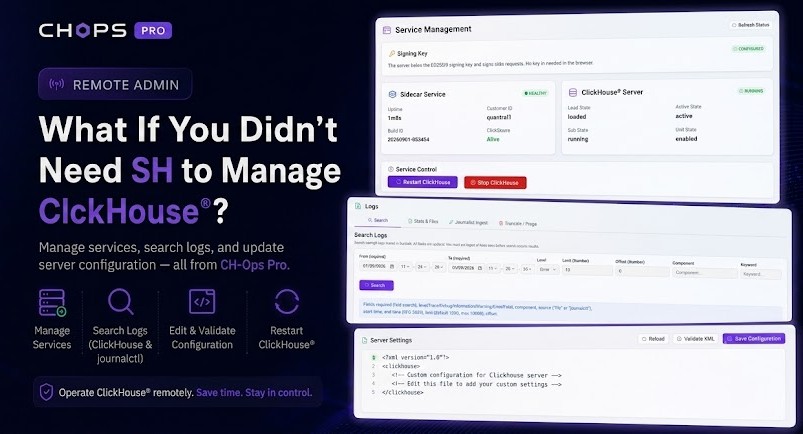
With Remote Admin, you can manage the ClickHouse® service, search ClickHouse® and journalctl logs, and update ClickHouse® server configuration directly from CH-Ops.
No SSH session required for those routine operations.
The part of ClickHouse® administration that usually lives in SSH
CH-Ops gives you a browser-based interface for managing ClickHouse®.
You can work with your databases, queries, monitoring, and other ClickHouse® operations.
But eventually, you run into questions that SQL alone can't answer:
Is the ClickHouse® service running?
Why did the service stop?
What did ClickHouse® log before it stopped?
What does the system journal say?
What configuration is currently applied?
Can I change that configuration and restart the service?
Traditionally, those answers live on the server itself.
So the workflow becomes:
CH-Ops
   |
   | Database operations
   v
ClickHouse®

SSH
   |
   +-- systemctl
   +-- journalctl
   +-- log files
   +-- configuration files
You're using two different interfaces to manage one ClickHouse® deployment.
Remote Admin brings those routine server-side operations into CH-Ops Pro.
What Remote Admin gives you
Remote Admin focuses on three areas:
- Service Management
- Logs
- Server Settings
Together, they cover many of the routine tasks you would otherwise perform through SSH.
You can check the ClickHouse® service state, start or stop the service, restart ClickHouse®, search server logs, inspect journalctl logs, and modify ClickHouse® configuration files.
The idea is simple:
Manage more of your ClickHouse® deployment from one place.
1. Manage the ClickHouse® service
Start with the most basic question:
Is ClickHouse® actually running?
The Service Management page gives you the current state of the ClickHouse® service.
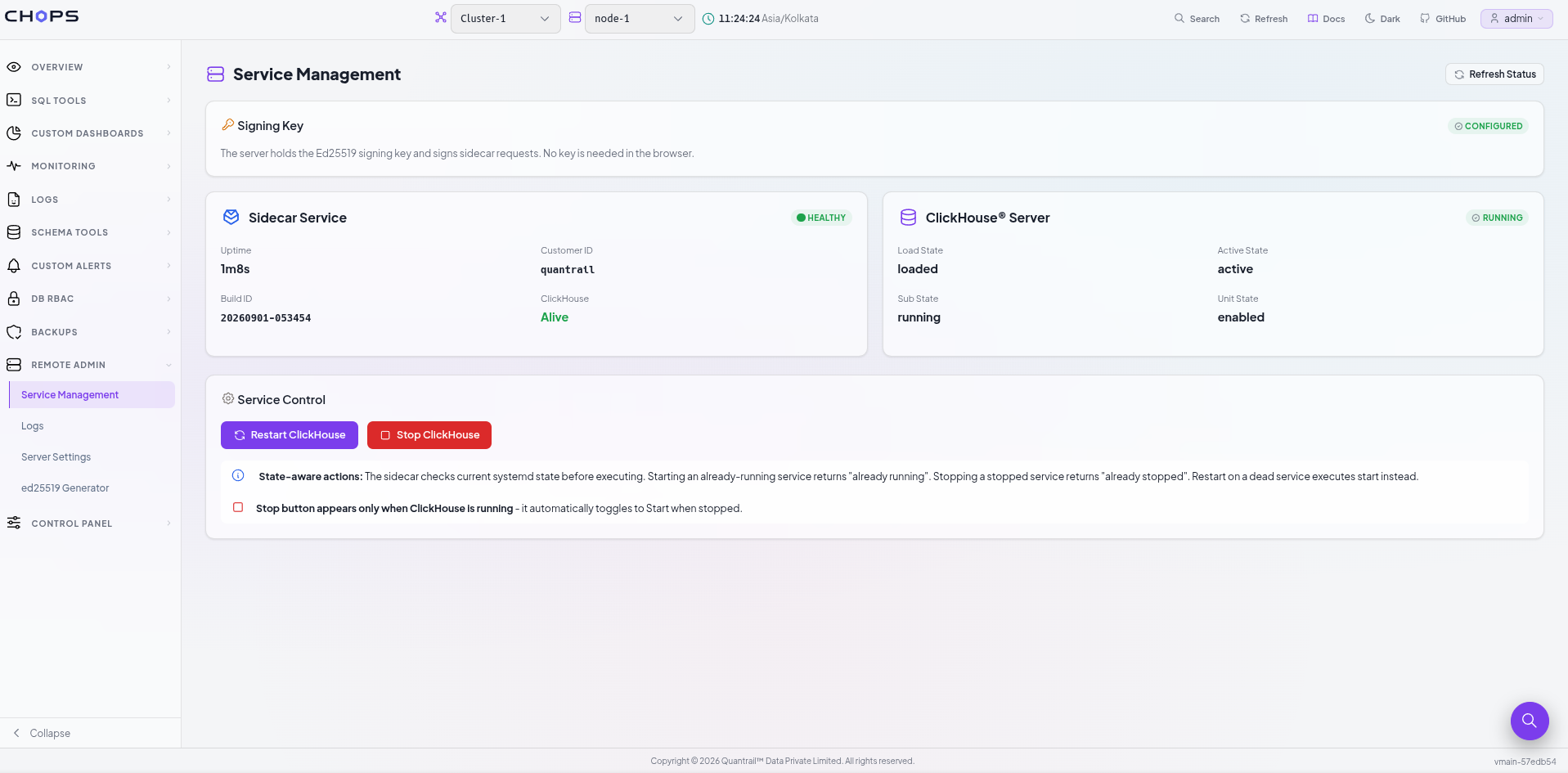
You can see information such as:
- Load state
- Active state
- Sub-state
- Unit state
So instead of connecting to the server and running:
systemctl status clickhouse-serveryou can check the service state directly from CH-Ops Pro.
For example:
Load State     loaded
Active State   active
Sub State      running
Unit State     enabled
This gives you an immediate view of whether the service is loaded, active, and running.
Restart ClickHouse® without SSH
Configuration changes are one common reason you might need to restart ClickHouse®.
Normally, that means running:
sudo systemctl restart clickhouse-serverWith Remote Admin, you can perform the same operational task through the interface.
Select:
Restart ClickHouse®
The service controls also take the current state of the service into account.
So you aren't simply presented with a collection of terminal commands disguised as buttons.
You can check the state, perform the required action, and verify the result from the same page.
Stop ClickHouse® when you need to
Remote Admin also provides a Stop ClickHouse® action when the service is running.
This can be useful during maintenance or when you need to intentionally take a ClickHouse® node offline.
The workflow is straightforward:
Check service
     |
     v
Choose action
     |
     +---- Start
     |
     +---- Stop
     |
     +---- Restart
     |
     v
Verify state
No terminal required.
2. Search ClickHouse® logs without opening a terminal
Service status tells you what is happening.
Logs often tell you why.
When ClickHouse® starts behaving unexpectedly, the usual response is to SSH into the server and start searching through log files.
You might use:
grep
less
tail
journalctl
Then narrow things down by timestamp, severity, component, or keyword.
The Logs section in CH-Ops Pro puts that investigation into the same interface.
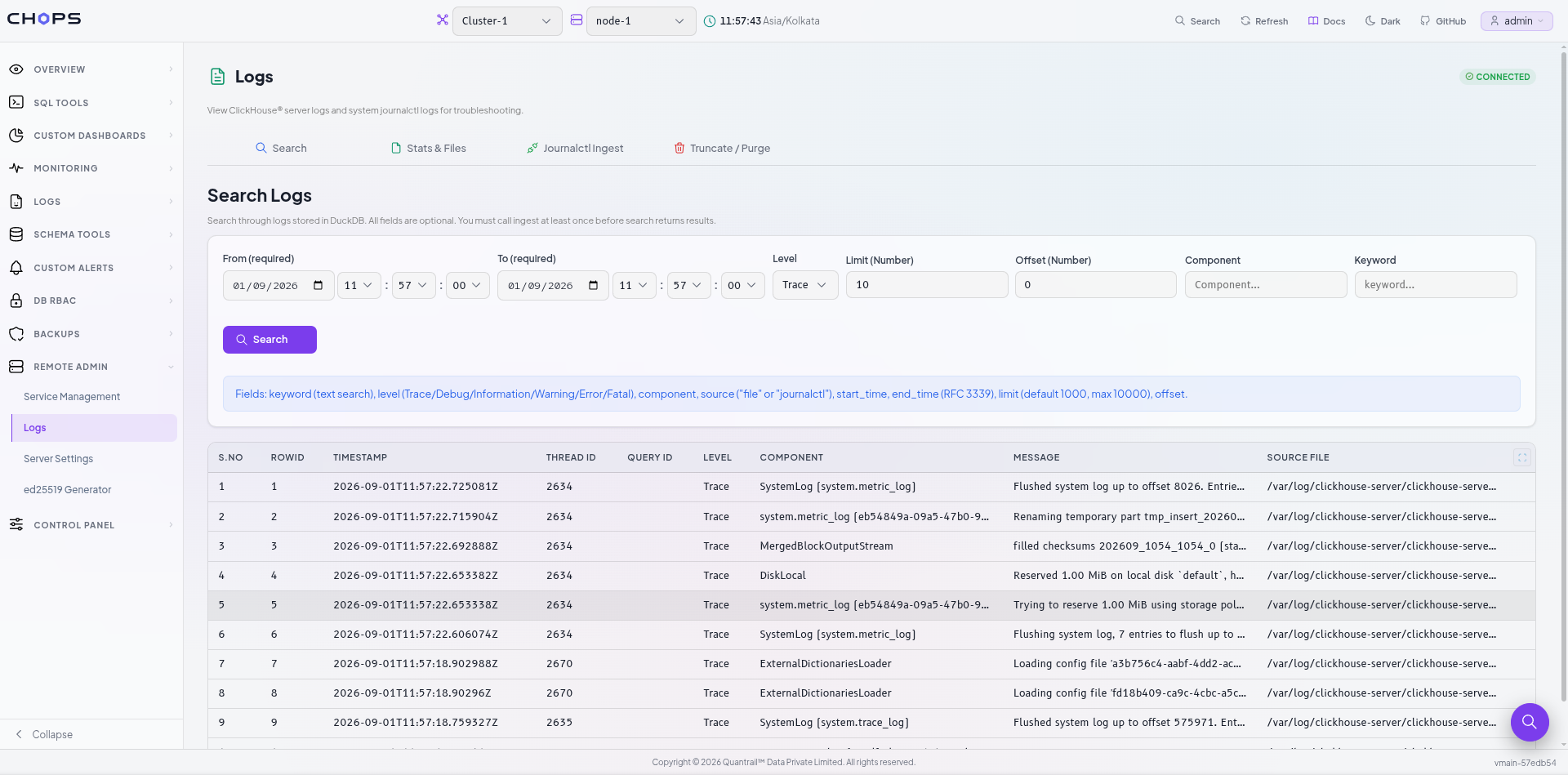
The Search interface lets you filter logs using:
- From
- To
- Level
- Limit
- Offset
- Component
- Keyword
Available log levels include:
Trace
Debug
Information
Warning
Error
Fatal
Instead of manually searching through a large log file, you can narrow the results to exactly what you're looking for.
Search the time window that actually matters
Suppose ClickHouse® started producing errors around 11:20.
You don't necessarily need to inspect the entire day's logs.
Start with the incident window:
From:  11:20
To:    11:30
Level: Error
Then add a component or keyword if you need to narrow the results further.
The question changes from:
"What's in the ClickHouse® log?"
to:
"What errors did ClickHouse® produce during the period when the incident started?"
That's a much easier question to answer.
And during an incident, reducing the amount of information you have to scan can make troubleshooting considerably faster.
ClickHouse® logs aren't the only source of information
Sometimes the ClickHouse® server log isn't enough.
The system journal can provide additional information about what happened to the ClickHouse® service.
That's where journalctl becomes useful.
Instead of leaving CH-Ops and running:
journalctl -u clickhouse-serveryou can work with journal logs through the Remote Admin Logs section.
This gives you two useful perspectives:
ClickHouse® logs
      |
      | Database-level events
      v

journalctl
      |
      | Service-level events
      v

Better troubleshooting context
You can investigate both without switching to a terminal.
3. Change ClickHouse® configuration without SSH
Now we get to one of the most useful parts of Remote Admin.
ClickHouse® configuration is file-based.
Custom configuration is commonly placed under:
/etc/clickhouse-server/config.d/For example:
config.d/custom.xmlNormally, changing that file means connecting to the server first:
ssh server
cd /etc/clickhouse-server/config.d
vim custom.xml
Then you need to validate the configuration.
Save it.
Restart ClickHouse®.
And finally check whether ClickHouse® came back successfully.
With CH-Ops Pro, you can edit the configuration directly from Server Settings.
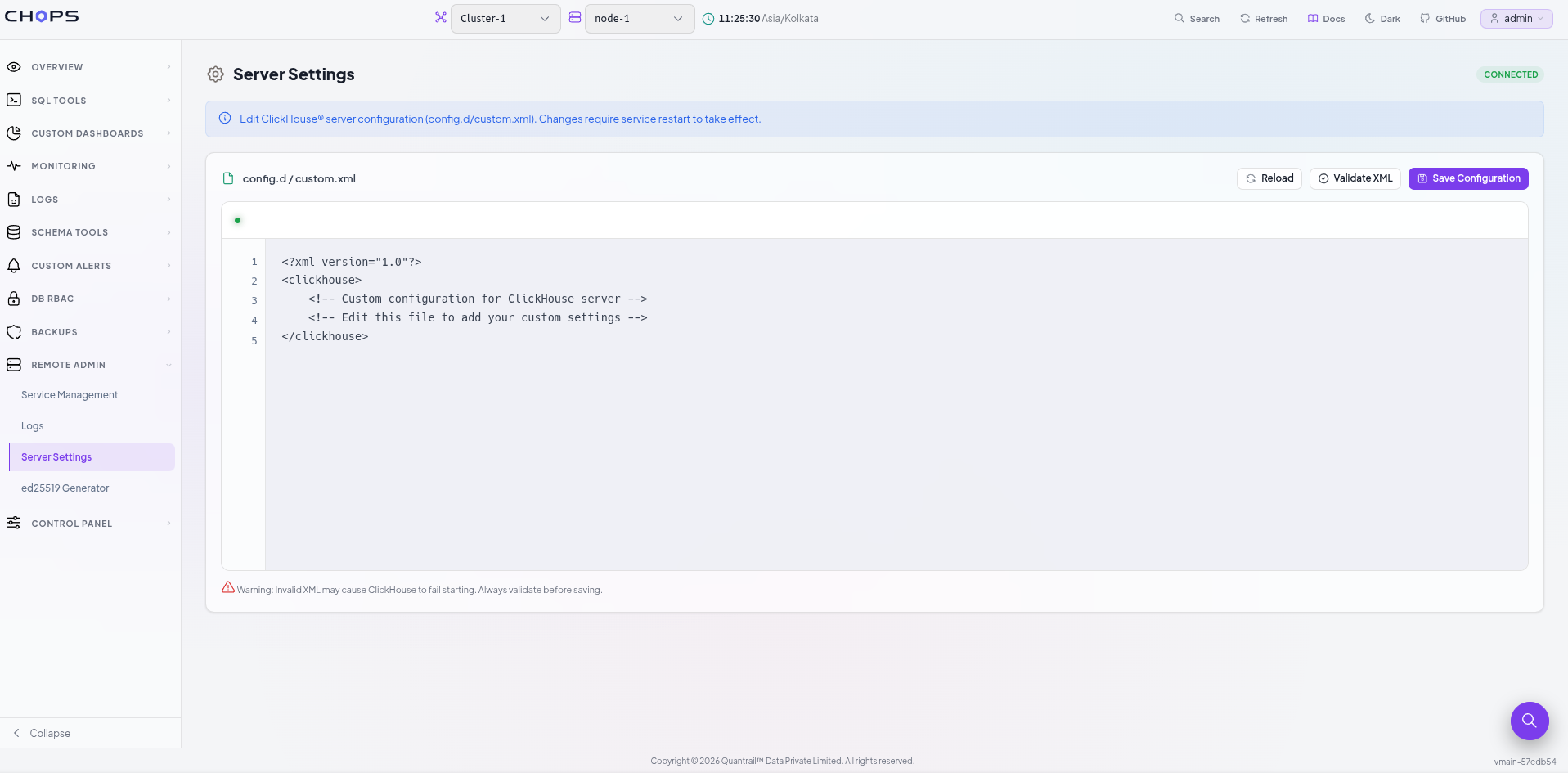
The interface provides access to:
config.d/custom.xmlalong with actions for:
- Reload
- Validate XML
- Save Configuration
So a configuration change doesn't require you to open an SSH session just to find and edit the file.
Validate before saving
This is an important part of the configuration workflow.
ClickHouse® configuration uses XML, and a malformed configuration can cause problems when ClickHouse® attempts to load it.
A missing closing tag or incorrect XML structure is enough to cause trouble.
That's why Server Settings provides a dedicated:
Validate XML
action.
The interface also warns:
Invalid XML may cause ClickHouse® to fail starting.
The workflow becomes:
Create/Edit configuration
       |
       v
  Validate XML
       |
       +---- Invalid
       |       |
       |       v
       |      Fix
       |
       v
Save Configuration
You get an opportunity to catch an XML problem before saving the configuration.
Configuration changes still require a restart
There is one important thing to keep in mind.
Remote Admin doesn't make every ClickHouse® configuration change dynamic.
For the configuration managed through Server Settings, changes require a service restart to take effect.
So the complete workflow is:
Create/Edit
  |
  v
Validate XML
  |
  v
Save Configuration
  |
  v
Restart ClickHouse®
  |
  v
Verify service
And because Service Management is part of the same Remote Admin experience, you can move directly from changing the configuration to restarting the service.
Put the three together
This is where Remote Admin becomes more than three separate features.
Imagine a ClickHouse® node suddenly starts failing.
You don't know whether the problem is:
- The ClickHouse® service
- A configuration change
- An application error
- A service-level failure
You can work through the investigation from one place.
Step 1: Check the service
Open:
Remote Admin → Service Management
Check whether ClickHouse® is active and running.
Step 2: Investigate the logs
Open:
Remote Admin → Logs
Search around the time the problem started.
Start with:
Level: ErrorThen narrow the results using a component or keyword.
If necessary, inspect the journalctl logs as well.
Step 3: Check the configuration
If the logs point towards a configuration problem, open:
Remote Admin → Server Settings
Inspect the relevant configuration file.
Step 4: Make the change
Update the configuration.
Run:
Validate XML
If the configuration is valid, save it.
Step 5: Restart ClickHouse®
Return to Service Management.
Select:
Restart ClickHouse®
Step 6: Verify
Check the service state again.
If everything is healthy, you're done.
If it isn't, go back to the Logs section and continue investigating.
The workflow becomes:
Service State
     |
     v
   Logs
     |
     v
Configuration
     |
     v
  Restart
     |
     v
  Verify
     |
     +--------> Logs
That's the real value of Remote Admin.
It's not simply about replacing systemctl with a button.
It's about keeping the investigate → change → restart → verify workflow together.
You still have SSH when you need it
Remote Admin isn't intended to replace SSH.
There will always be situations where direct server access is necessary.
Maybe you're debugging networking.
Maybe you need to inspect the filesystem.
Maybe you're investigating an operating-system issue.
Maybe you need to perform an operation that isn't exposed through Remote Admin.
SSH remains the right tool for those situations.
The idea is much simpler:
Don't use SSH when you don't need SSH.
If the task is checking ClickHouse® status, inspecting logs, changing a supported configuration file, or restarting the service, you shouldn't necessarily have to leave your ClickHouse® administration interface.
Less switching. More ClickHouse® administration.
Running ClickHouse® isn't only about writing SQL.
At some point, you have to deal with the service underneath the database.
You need to know:
Is the service running?
Why did it stop?
What does the log say?
Did the configuration change?
Can I safely restart it?
Traditionally, those questions live outside the database interface.
Service state lives in systemd.
Logs live in log files and the system journal.
Configuration lives in XML files.
And the administrator moves between all of them through SSH.
CH-Ops Pro Remote Admin brings those routine operational tasks into the ClickHouse® administration workflow.
You still have the server.
You still have the underlying system tools.
But for common ClickHouse® administration tasks, you don't necessarily need to open another terminal.
Manage ClickHouse® without leaving CH-Ops Pro
With CH-Ops Pro Remote Admin, you can:
- Check ClickHouse® service state
- Start and stop ClickHouse®
- Restart ClickHouse®
- Search ClickHouse® server logs
- Search
journalctllogs - Filter logs by time, level, component, and keyword
- Edit ClickHouse® configuration
- Validate XML before saving
- Apply configuration changes
- Restart and verify the service
The important part isn't that CH-Ops Pro gives you graphical versions of systemctl or journalctl.
It's that database administration and server administration no longer have to feel like two completely separate workflows.
Less context switching.
Fewer SSH sessions for routine tasks.
One interface for managing your ClickHouse® deployment.
That's Remote Admin in CH-Ops Pro.