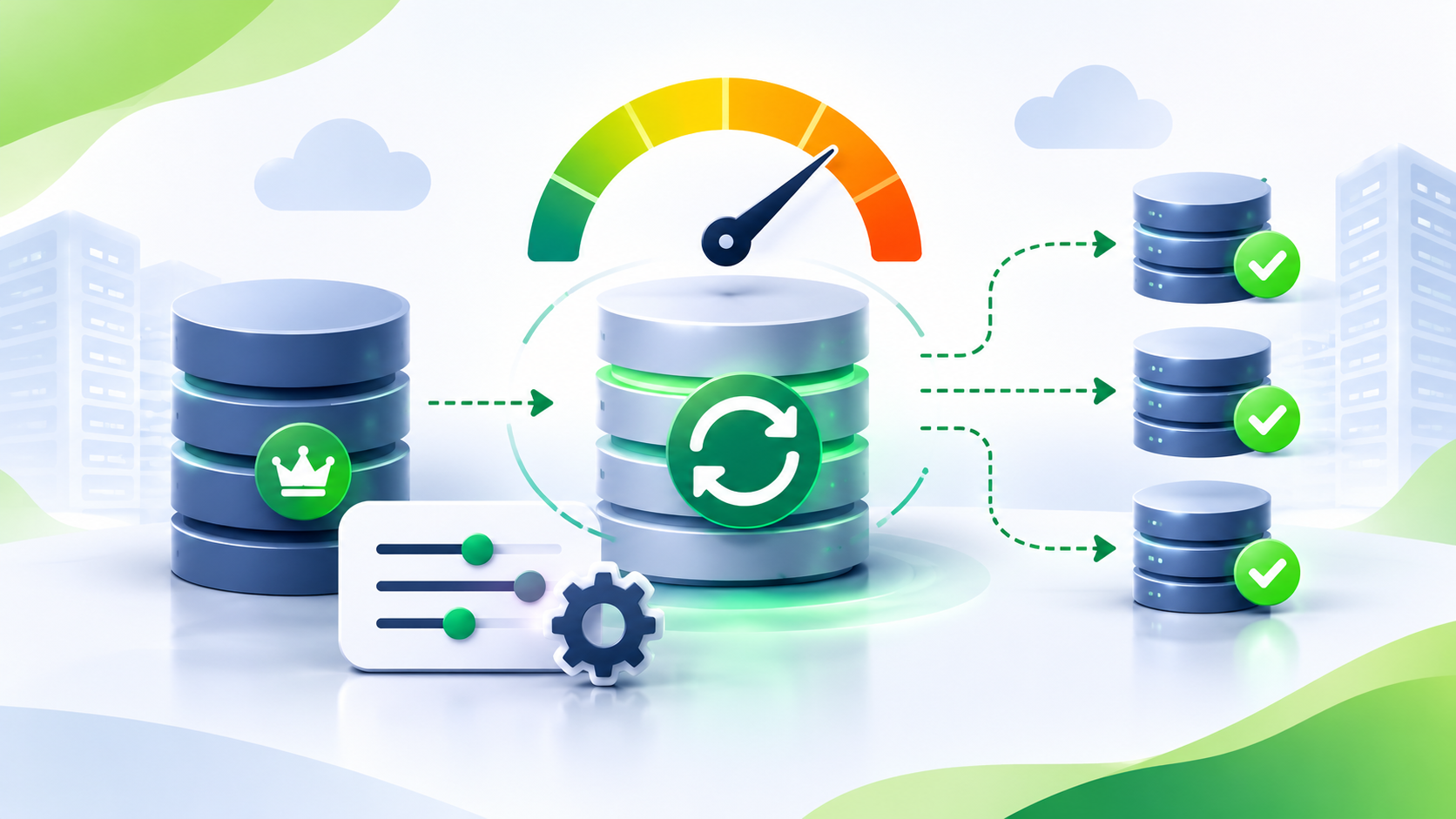
You run a replicated ClickHouse table on two or more servers. Each server maintains a replica of the same table.
You insert data into one replica. The other replicas must fetch the new data parts. Normally, this process takes a few seconds.
Sometimes, one replica falls behind. It takes several minutes or hours to receive new data. The replication queue grows and does not go down.
You may see these symptoms:
- Queries on one replica return older data.
absolute_delayinsystem.replicasis high.queue_sizecontinues to increase.inserts_in_queueshows many pending fetch tasks.- The replica remains online, but it cannot process new tasks fast enough.
The problem is not always a failed replica. The replica may work correctly, but its background resources cannot process tasks at the required rate.
This article explains how to identify the bottleneck and tune the server settings that control replication fetches and network bandwidth.
This article focuses on replication fetch capacity and network bandwidth limits. It does not cover broken parts, lost Keeper sessions or read-only replicas. We will cover these replication issues in a separate upcoming article.
Why it happens
ClickHouse uses ClickHouse Keeper to coordinate replication. Each replica reads entries from the shared replication log and adds tasks to its local replication queue.
Two important task types are:
GET_PART: Fetches a data part from another replica.MERGE_PARTS: Merges existing data parts.
A replica uses background threads to process these tasks.
Fetch threads
The background_fetches_pool_size setting controls the number of threads available for background fetch operations.
When all fetch threads are busy, new fetch tasks must wait. They remain in the replication queue.
For example, assume the pool has 16 threads. All 16 threads are fetching data parts. A new GET_PART task cannot start until a thread becomes available.
If new tasks arrive faster than existing tasks finish, the queue grows.
Schedule pool
The background_schedule_pool_size setting controls the number of threads available for lightweight periodic background tasks.
Replicated tables use this pool for scheduling replication-related work.
Other ClickHouse background activities also use this pool. If it has insufficient capacity, background tasks can experience delays.
Do not increase this pool without checking its current activity.
Common causes
Investigate these conditions:
- Fetch pool saturation: All fetch threads are busy, but the network and disks have free capacity.
- Network saturation: Fetch operations use most of the available network bandwidth.
- High insert frequency: Frequent small inserts create many parts and increase replication work.
- Failed tasks: Replication entries repeatedly fail because of exceptions or connectivity problems.
More fetch threads can help with the first condition. They cannot fix failed tasks or an overloaded network.
How to confirm
Start with the ClickHouse system tables. Identify the delayed replica before changing any settings.
Check system.replicas
Run this query on the affected replica:
SELECT
    database,
    table,
    absolute_delay,
    queue_size,
    inserts_in_queue,
    merges_in_queue,
    part_mutations_in_queue
FROM system.replicas
WHERE absolute_delay > 0
   OR queue_size > 0
ORDER BY absolute_delay DESC
LIMIT 20;
Check these columns:
| Column | Meaning |
|---|---|
absolute_delay | Estimated replication delay in seconds |
queue_size | Number of pending replication tasks |
inserts_in_queue | Number of pending insert-related replication tasks |
merges_in_queue | Number of pending merge tasks |
part_mutations_in_queue | Number of pending mutation tasks |
If inserts_in_queue is high, investigate part fetching.
If merges_in_queue is high, investigate merge activity and resource usage.
Inspect system.replication_queue
Next, inspect the tasks in the replication queue.
SELECT
    database,
    table,
    type,
    count() AS entries,
    max(num_tries) AS max_tries,
    countIf(last_exception != '') AS with_exception,
    countIf(postpone_reason != '') AS postponed
FROM system.replication_queue
GROUP BY
    database,
    table,
    type
ORDER BY entries DESC
LIMIT 20;
Pay attention to these columns:
typeidentifies the replication task.num_triesshows the number of attempts.last_exceptioncontains the last reported error.postpone_reasonexplains why ClickHouse postponed a task.
A high retry count can indicate a failing replication task. Investigate its exception before changing pool sizes.
Check replication exceptions
Run this query to group the reported exceptions:
SELECT
    last_exception,
    count() AS entries,
    max(num_tries) AS max_tries
FROM system.replication_queue
WHERE last_exception != ''
GROUP BY last_exception
ORDER BY entries DESC
LIMIT 10;
If the query returns errors, investigate them first.
Check postponed tasks
Run this query to identify common postponement reasons:
SELECT
    postpone_reason,
    count() AS entries
FROM system.replication_queue
WHERE postpone_reason != ''
GROUP BY postpone_reason
ORDER BY entries DESC
LIMIT 10;
Look for messages that indicate that the maximum number of concurrent fetches has been reached. Exact message text can differ between versions.
Check background activity
Run this query to inspect the background metrics:
SELECT
    metric,
    value
FROM system.metrics
WHERE metric IN (
    'BackgroundFetchesPoolTask',
    'BackgroundSchedulePoolTask',
    'ReplicatedFetch'
);
Compare the active fetch tasks with the configured fetch pool size.
If the fetch pool remains full, investigate whether additional threads can improve throughput.
Also check CPU, disk I/O and network utilization. A full fetch pool does not prove that more threads will help.
The settings
The following defaults come from ClickHouse master branch, commit 9f79cc1, dated 30 October 2026.
Defaults can differ between ClickHouse releases. Check your own server before applying changes.
| Setting | Default | What it controls | Restart needed |
|---|---|---|---|
background_fetches_pool_size | 16 | Number of background threads that fetch parts from other replicas | No for increase; yes for decrease |
background_schedule_pool_size | 512 | Number of threads for lightweight background scheduling tasks | No for increase; yes for decrease |
max_replicated_fetches_network_bandwidth_for_server | 0 (no limit) | Maximum network bandwidth for replicated fetches on the server | Yes |
max_replicated_sends_network_bandwidth_for_server | 0 (no limit) | Maximum network bandwidth for replicated sends on the server | Yes |
Check the actual values on your server.
Run:
SELECT
    name,
    value,
    default,
    changed,
    changeable_without_restart
FROM system.server_settings
WHERE name IN (
    'background_fetches_pool_size',
    'background_schedule_pool_size',
    'max_replicated_fetches_network_bandwidth_for_server',
    'max_replicated_sends_network_bandwidth_for_server'
);
Use system.server_settings to check server-level settings. Use system.settings when you need to inspect query-level settings.
The changeable_without_restart column shows whether a setting supports changes without a restart.
How to fix it
Change one setting at a time. Measure replication activity after each change.
Increase the fetch pool size
Use this change when the fetch pool is full. Confirm that the network and disks have spare capacity.
The default is 16. Start with 32 threads. This doubles the available fetch concurrency.
Create this file:
/etc/clickhouse-server/config.d/replication_fetches.xml
Add:
<clickhouse>
    <background_fetches_pool_size>32</background_fetches_pool_size>
</clickhouse>
An increase does not require a server restart. Apply the configuration change and verify the effective value.
Start with the affected replica. Monitor CPU, disk usage and network traffic.
Do not increase the value further unless measurements show that additional threads will help.
Increase the schedule pool size
Use this change only when the schedule pool has insufficient capacity.
The default is 512. Start with 768 threads. This increases the pool size by 50%.
Create:
/etc/clickhouse-server/config.d/schedule_pool.xml
Add:
<clickhouse>
    <background_schedule_pool_size>768</background_schedule_pool_size>
</clickhouse>
An increase does not require a server restart. Verify that ClickHouse applies the new value.
Each additional thread uses memory. Other background activities also use this pool. Increase it only when measurements justify the change.
Set a fetch bandwidth limit
Use this change when replication fetches consume most of the available network bandwidth.
A bandwidth limit controls the maximum transfer rate. It helps prevent replication traffic from competing with query traffic.
For example, set a limit of 500 MiB/s.
Create:
/etc/clickhouse-server/config.d/replication_bandwidth.xml
Add:
<clickhouse>
    <max_replicated_fetches_network_bandwidth_for_server>
        524288000
    </max_replicated_fetches_network_bandwidth_for_server>
</clickhouse>
The value is in bytes per second. 524288000 equals 500 MiB/s.
Choose a value based on your network capacity and normal query traffic. A lower limit can slow replication recovery.
Set a send bandwidth limit
The send setting controls the bandwidth used when this server sends replicated parts to other replicas.
Create the same configuration file:
/etc/clickhouse-server/config.d/replication_bandwidth.xml
Add:
<clickhouse>
    <max_replicated_sends_network_bandwidth_for_server>
        524288000
    </max_replicated_sends_network_bandwidth_for_server>
</clickhouse>
Both bandwidth settings require a server restart.
You can place both settings in one XML file. This makes the bandwidth configuration easier to manage.
Apply the appropriate limits across the relevant replicas. Restart one replica at a time. Wait until each replica becomes active before restarting another.
How to verify the fix
Wait a few minutes after each configuration change. Then run the system.replicas query again.
Check for these improvements:
queue_sizedecreases.absolute_delaydecreases.inserts_in_queuedecreases.- The oldest pending tasks are completed.
- New replication tasks do not accumulate faster than ClickHouse processes them.
Verify the fetch pool setting:
SELECT
    name,
    value,
    changed
FROM system.server_settings
WHERE name = 'background_fetches_pool_size';
Check background activity again:
SELECT
    metric,
    value
FROM system.metrics
WHERE metric IN (
    'BackgroundFetchesPoolTask',
    'ReplicatedFetch'
);
Compare the results with your earlier measurements.
If the fetch pool was full and the queue now decreases, the change may have resolved the bottleneck.
If the queue still grows, investigate network limits, disk performance and replication exceptions.
Also monitor query latency during replication recovery. Reduce replication bandwidth limits if normal queries become slower.
Risks and trade-offs
Network contention: Without a bandwidth limit, replication fetches can compete with query traffic for network bandwidth. This can increase query latency, especially when multiple replicas fetch data simultaneously.
Low bandwidth limits: A limit that is too low can slow down replication and prevent replicas from catching up with the primary replica. Choose a limit based on the incoming replication workload and available network capacity.
More background threads: Increasing the number of fetch threads can improve parallelism, but additional threads also consume CPU, memory, and disk resources. Too many threads can increase contention on an already busy server.
Shared server settings: Replication bandwidth limits apply at the server level. They do not provide separate bandwidth controls for individual tables.
Restart requirements: Changes to these settings require a server restart to take effect. Use rolling restarts across replicas to minimize service disruption.
Failed replication tasks: Increasing bandwidth limits or fetch threads will not resolve tasks that repeatedly fail. Investigate last_exception and postpone_reason to identify the underlying issue before changing the configuration.
Version differences: Default values and setting behavior can vary between ClickHouse releases. Check the effective settings on your server before applying changes.
Summary
- Check
system.replicasandsystem.replication_queuebefore changing settings. - Increase
background_fetches_pool_sizewhen fetch threads are full and the network and disks have capacity. - Increase
background_schedule_pool_sizeonly when scheduling capacity is insufficient. - Set replication bandwidth limits when fetches saturate the network. These changes require a restart.
- Monitor replication delay, queue size and query latency after every change.